
How to unblock an email that was blocked by SpamExperts?
In the very rare cases where you need to recover an email that was blocked by SpamExperts because it was identified as spam, you can unblock it directly in a few steps:
- Log in to your client area
- In the "My Account" menu, choose "My Services"
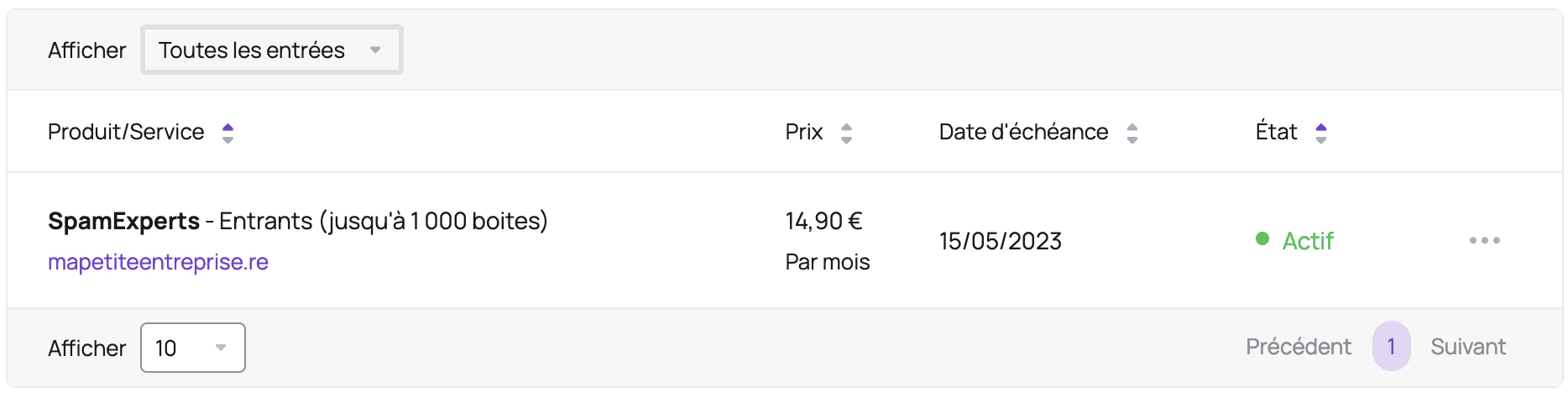
- Click on the "SpamExperts" line corresponding to the domain you want to access:
- Click on "Log in to SpamExperts":
- If SpamExperts does not open, check that your browser is not blocking popup windows.
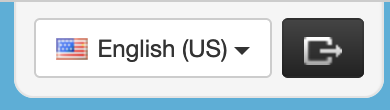
- If SpamExperts is in English, click the "English (US)" button at the top right and choose "French":
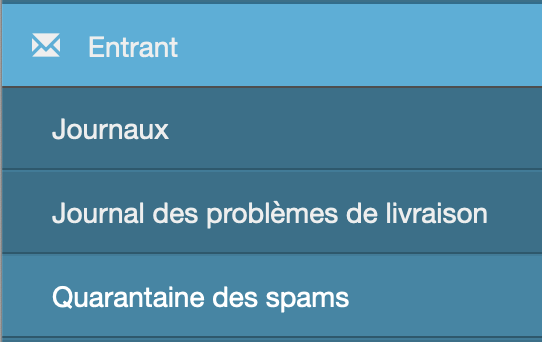
- In the left menu, choose "Spam quarantine" in the "Incoming" section:
- You then have access to the list of all messages that were blocked by SpamExperts:

- If you need to filter, you can click the "New rule" button in the "Query rules" section:
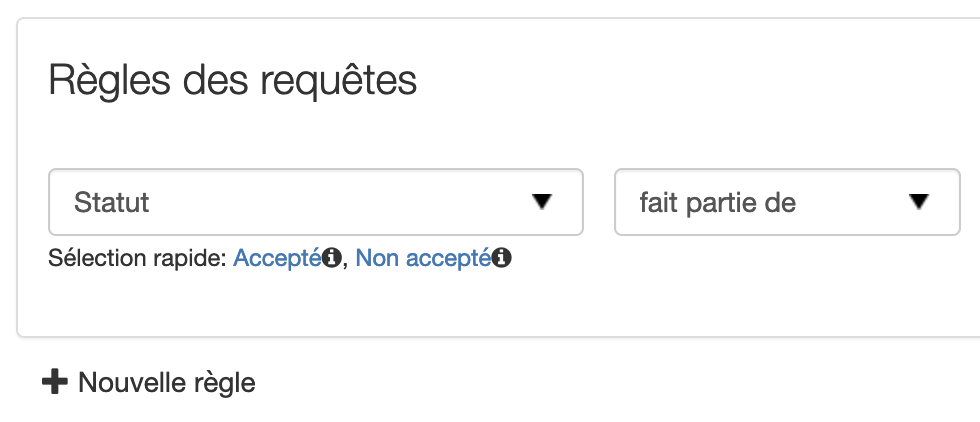
You can then filter by sender or recipient, for example.
- Once you have identified the message, you can click on its subject to preview it and optionally unblock the message.
- If you want to unblock the message or whitelist the sender, click "More actions" in the preview window that appeared after clicking the subject. Here are the main actions:
- Add sender to whitelist: prevents future messages from this sender from being blocked
- Release from quarantine: sends the message to your mailbox
- Release and train from quarantine: sends the message to your mailbox and teaches SpamExperts that this message was not spam (to avoid blocking similar messages in the future)
- If the message you are looking for is not there, see the following section.
Note: SpamExperts time corresponds to the Paris time zone.
What if the message is not in the SpamExperts quarantine?
You can view the list of all messages received by SpamExperts in the "Logs" menu under the "Incoming" section. This will allow you to know, for example, if the message has not yet been delivered by the sender's server to SpamExperts, or if there is another issue (for example, unable to connect to your mail server).
You must set up filters in this section using the "Query rules" section and click "Show results". The default filter displays messages from the last week.
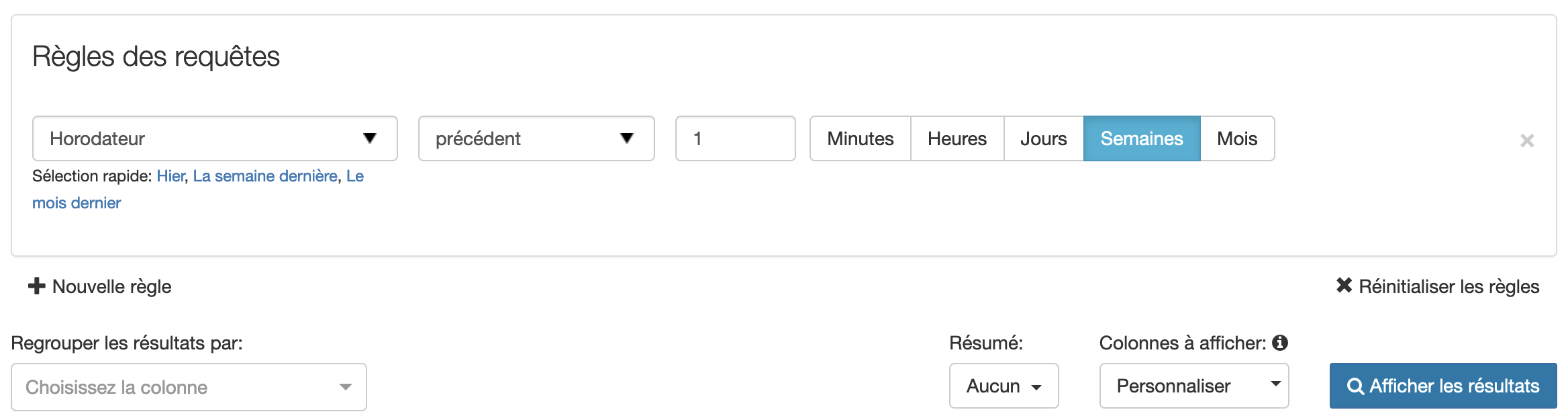
Once the filter is set up, you will have several possible outcomes:
- If you cannot find the message you are looking for, you need to contact the sender. The problem is likely on their mail server side.
- If you find the message you are looking for, here are the most common statuses:-
delivered: the message was sent to your mail server queuedorbounced: the message could not be sent to your mail server (you can click the arrow next to the checkbox then choose "Delivery problem log" to learn more)queued: SpamExperts will regularly retry sending the messagebounced: the number of send attempts has been exceeded and SpamExperts sent an error message to the sender to inform them that the message could not be delivered
quarantined-expired: the message was quarantined for more than 14 days and has been deleted from SpamExpertsconnection-lostandnot-accepted: the SMTP connection did not complete properly, this is a connection issue between your server and SpamExpertsrejected: the message is considered highly dangerous (phishing or virus for example) and was blocked at the SMTP level (the sender received an error message)
Allow end users to unblock their emails
If you want to allow your users to unblock their emails, you can go to the left menu, choose "Manage email users" in the "Users and permissions" section. Your users will only have access to emails addressed to them.
On this screen, you can choose to create a user ("Add" link), import a CSV file ("Upload a CSV file" link) or configure Active Directory / LDAP authentication (click the arrow next to "LDAP Authentication"):

Your users will have access to the interface via https://login.antispamcloud.com.
Updated on: 21/02/2026
Thank you!