
How to deploy a Python application?
We allow you to deploy a Python application directly on your hosting, without having to manage anything yourself. Technically, the deployment is based on Phusion Passenger.
- Log in to your cPanel
- In the "Software" section, choose "Setup Python App"
- Click on "Create Application"
- Fill in your application information:
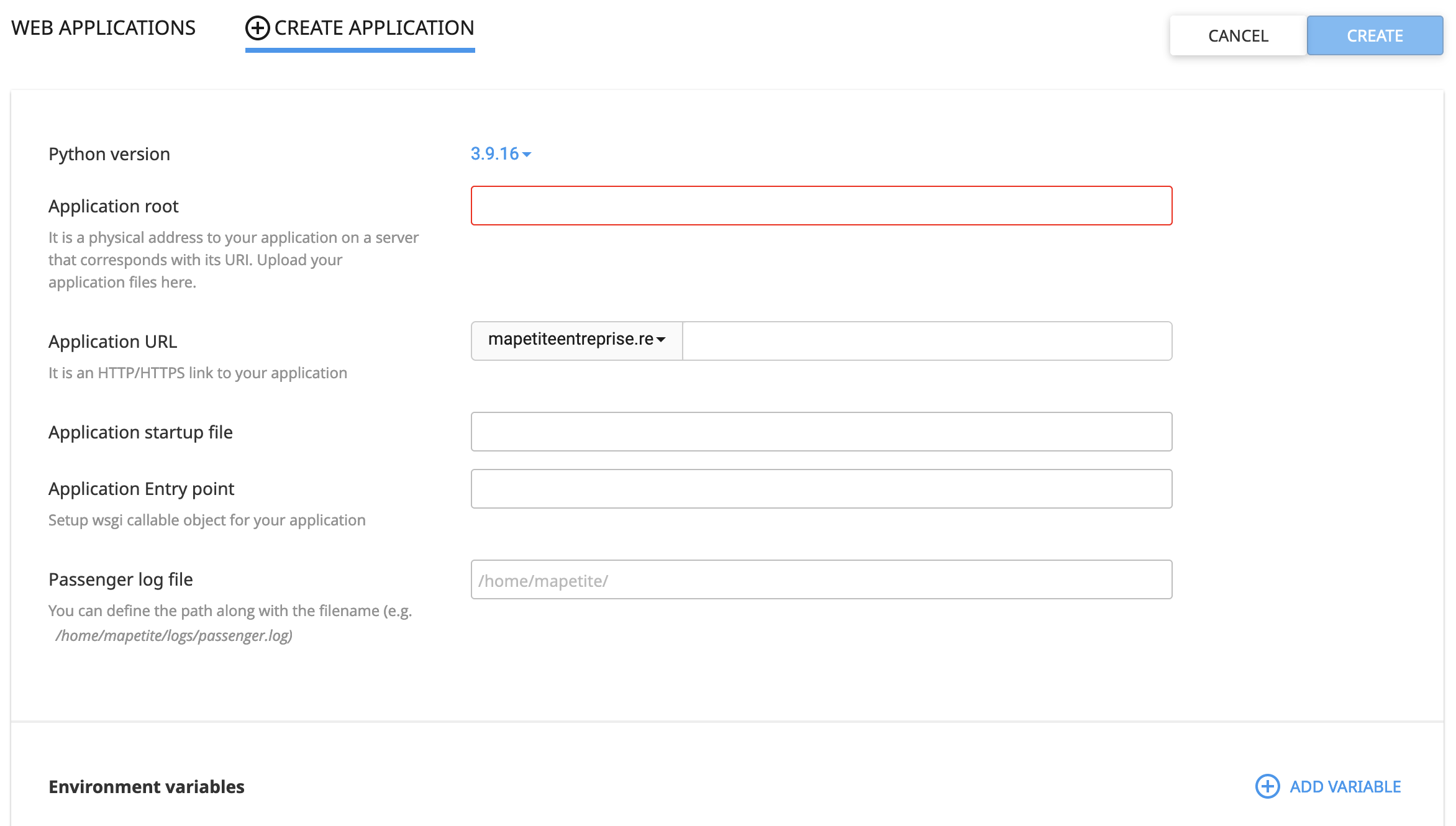
Create: click here after filling in the form to create your application
Python version: choose the Python version to use (feel free to contact our support if you need one that is not listed)Application root: specify the folder where your application code is located (preferably use a folder different from the one for the domain where you will deploy your application)Application URL: specify the URL where you want to deploy your application, optionally with a subdirectory (cPanel will create an .htaccess file at this location)Application startup file: specify the WSGI file used to start your application, it must be located in theApplication rootfolderApplication Entry Point: specify the function, contained in your WSGI file, that should be called to run the application (usuallyapplication).Passenger log file: specify where you want to create the log file (optional but useful for debugging)Environment variables - Add Variable: add the environment variables required by your application
Display more errors
The error page displayed in the web browser is, by default, quite basic. You can enable a more detailed debugging mode in Phusion Passenger to display more errors by adding the following lines to the .htaccess file at the root of the domain (and subdomain if applicable):
PassengerAppEnv development
PassengerFriendlyErrorPages on
My application does not start
If the Python application does not start, it means that Phusion Passenger cannot launch the application via your WSGI file, so either the WSGI file path is incorrect, or the function specified in Application Entry Point is incorrect.
Updated on: 21/02/2026
Thank you!