
How do I install WordPress on my site?
Installing WordPress on your site can seem complex, especially if this is your first experience with this type of platform. Fortunately, our hosting plans include WordPress Toolkit, which considerably simplifies this process. This self-installation tool lets you quickly launch your WordPress site in just a few steps.
- Log in to your cPanel
- On the left, click "WordPress Management"
- Then click the "Install WordPress" button:
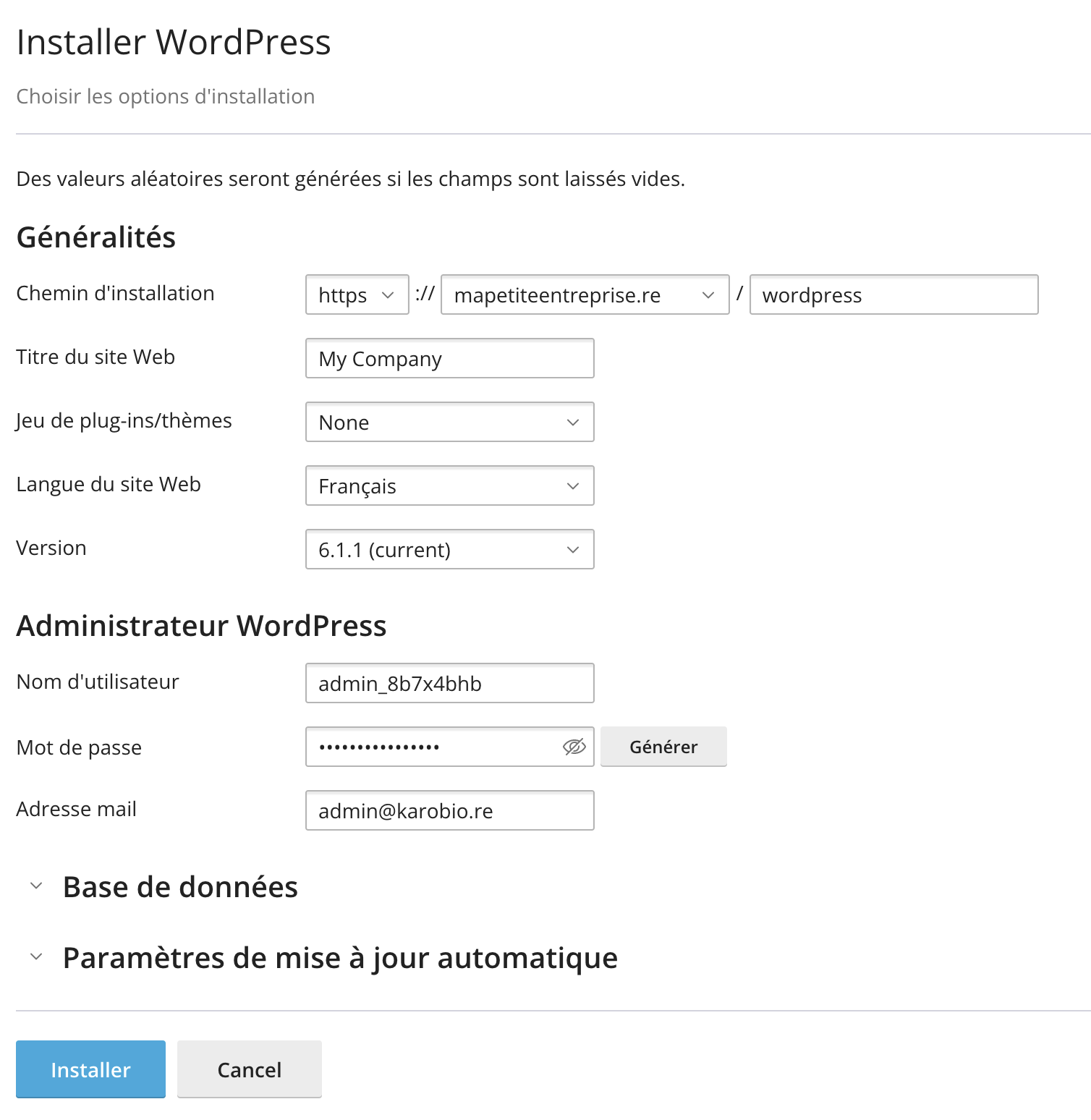
- Leave the installation path empty, or enter "wordpress" if you want to install WordPress in a subfolder, for example the "wordpress" folder
- Confirm the installation options
- Be sure to note down the generated password or change it.
- Click the "Install" button at the bottom of the page
- Once your WordPress site is installed, you can start building your site, using for example Enzo's video tutorial (Easy WordPress) to help you.
Go further
We provide resources to help you learn how to use WordPress.
We include AccelerateWP as standard, which lets you speed up your site for free, with Premium and CDN options for the most demanding sites.
We also offer WordPress Serenity as an option if you'd like us to take care of maintaining a high level of security on your WordPress site.
Updated on: 17/07/2026
Thank you!