
How to restore a backup?
Make your own backups
The backups we perform do not replace your own backup policy. You can download a backup at any time by going to cPanel, under "Files" then "Backup".
We back up your space automatically and you have the option to restore or download the backups created using JetBackup.
Warning!
Restoring may erase data created after the backup date, so we recommend downloading your backups to your computer if you are unsure, rather than restoring backups which would overwrite your data. You can also check the "Merge backup data with live account data" box to avoid this.
Our technical support team is available to manually restore on your behalf if you prefer, for a flat fee of 79 EUR excl. tax (free with CYBER+ or VIP plans).
Below you will find instructions for accessing the backups we create, based on the most common needs. You will find more details on advanced features in the complete JetBackup documentation (for example, restoring other types of data).
Folders and files
- Log in to your cPanel
- In the "Files" section, choose "JetBackup 5"
- Click on "Home Directory"
- Click on the date of the backup you are interested in:

- Click on "Change Files Selection" to choose which files to restore by clicking the checkbox next to them (you can navigate into a folder by clicking on its name), then click "Select Files".
- Then click "Restore" to restore your files or "Download" to download them.
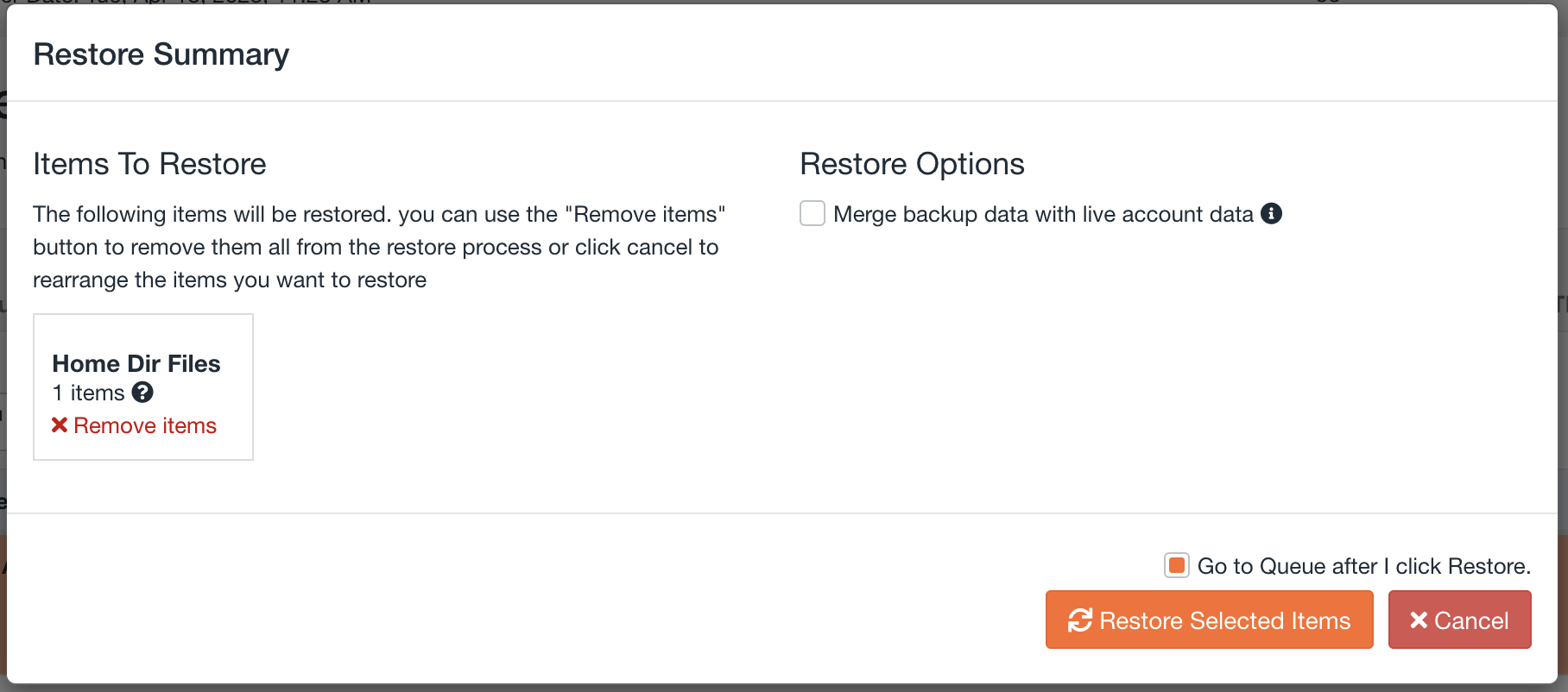
- If you clicked "Restore", check the "Merge backup data with live account data" box in the window if you want to keep files created/modified since the backup:
Databases
- Log in to your cPanel
- In the "Files" section, choose "JetBackup 5"
- Click on "Databases"
- Click on the name of the database you are interested in:

- Click on "Choose Other Backup" if you want to change the backup date to restore.
- Then click "Restore" to restore your files or "Download" to download them.
Email accounts
- Log in to your cPanel
- In the "Files" section, choose "JetBackup 5"
- Click on "Emails accounts"
- Click on the email account you are interested in:

- Click on "Choose Other Backup" if you want to change the backup date to restore.
- Then click "Restore" to restore your files or "Download" to download them.
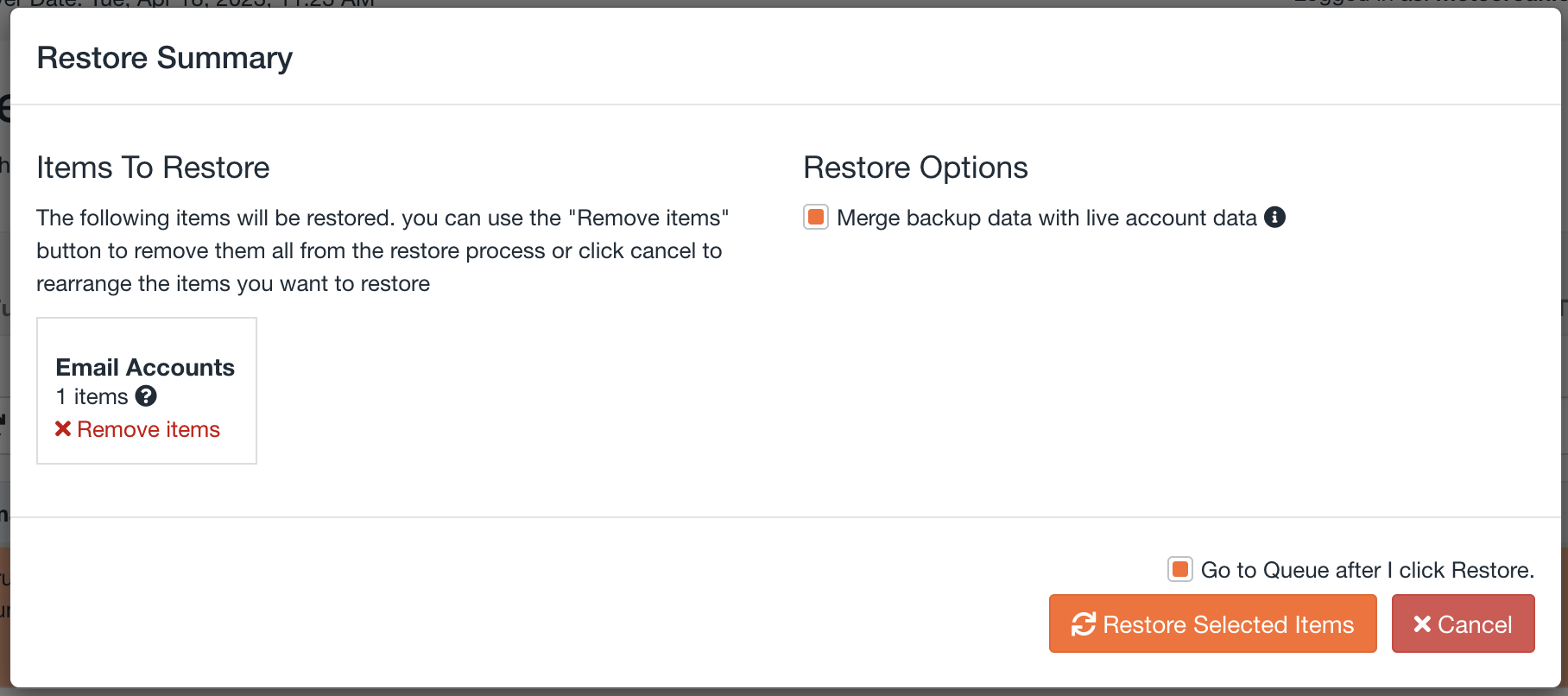
- If you clicked "Restore", check the "Merge backup data with live account data" box in the window, unless you want to delete messages received since the backup:
Updated on: 21/02/2026
Thank you!