
How to configure your FTP client to upload your site?
To upload your site from your computer to our servers, you will need to use an FTP client, such as FileZilla.
What username and password to use?
By default, your hosting has an FTP account whose username and password are the same as your cPanel credentials found in your welcome email. These are not the username and password for your client area. If you have lost your cPanel username or password, click here to learn how to recover them.
You can also create additional FTP accounts in the "FTP Accounts" section of your cPanel. Be careful to change the path in the "Directory" field so that it matches the folder for your website. Your main domain name is located in the public_html folder. If you are a participant in 24h by WebCup, you do not have this option and must use your cPanel username and password.
How to configure FileZilla?
- In the "File" menu, click on "Site Manager..."
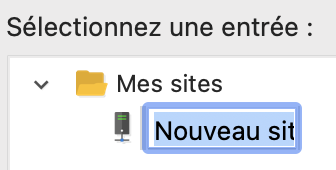
- Click the "New Site" button
- Enter the name of your website and press the Enter key on your keyboard:
- In the right section, fill in your hosting information:
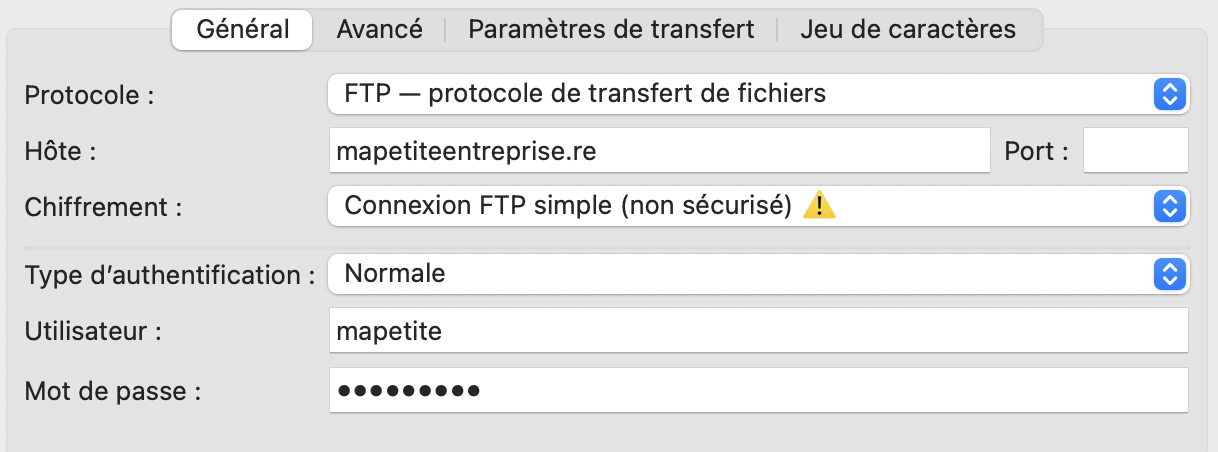
- Host: your domain name
- Encryption: Plain FTP (insecure) - if you want to use a secure connection, see the "How to transfer securely?" section at the bottom of this page
- Authentication type: Normal
- User: your cPanel username, or the FTP account you created
- Password: the associated password
- Click the Connect button
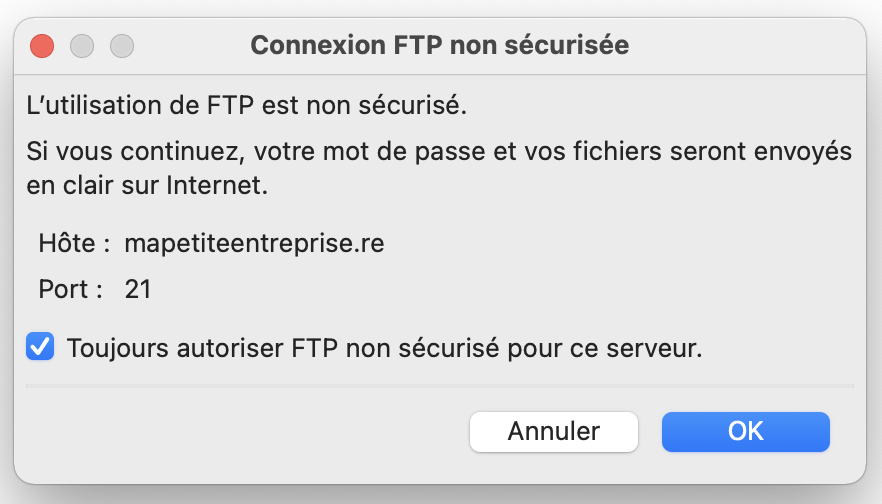
- If the window below appears, check the box "Always allow insecure FTP for this server." and click the "OK" button
- If the window below appears, check the box "Save passwords" and click the "OK" button
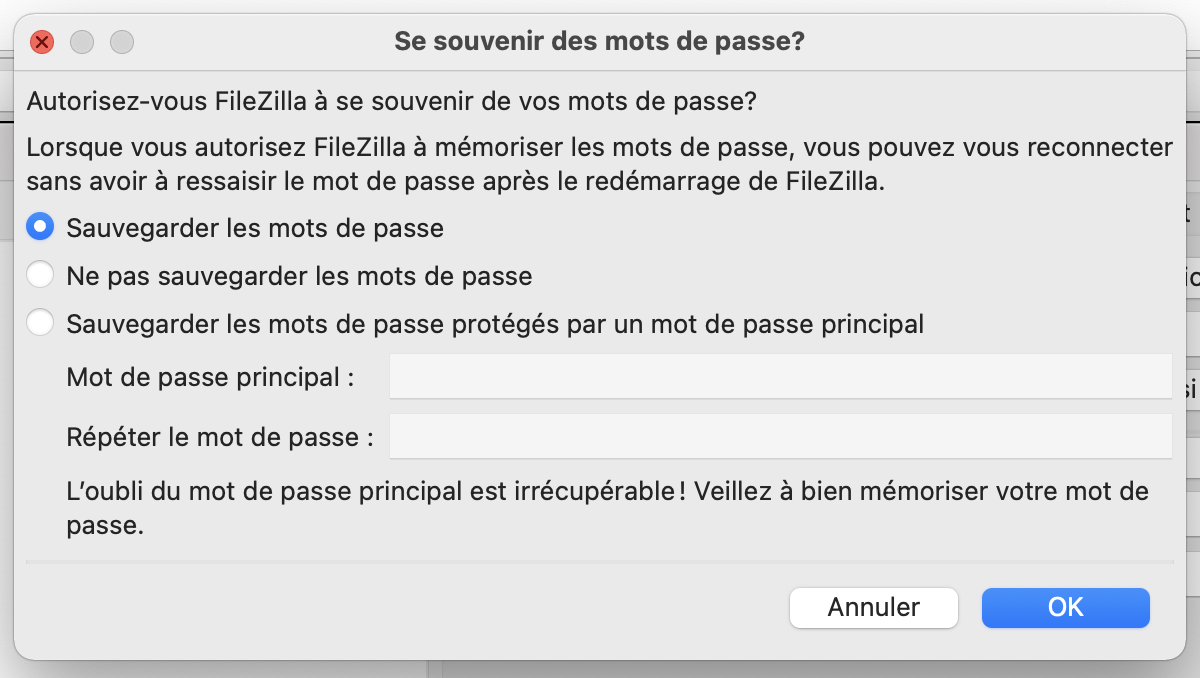
Once you have saved the settings, next time you just need to open the Site Manager via the File menu and click "Connect".
How to transfer files with FileZilla?
You can then drag and drop files between your computer (left section, called "Local site") and your server (right section, called "Remote site"). If you want to upload files to your server, drag from left to right. If you want to download files from your server, drag files from right to left.
Tip: your main domain name is in the public_html folder and the file that displays when your site opens must be named index.html (or index.php if you use PHP).
To go further, you can watch the video below:
You don't see your changes?
Please refer to the FAQ "You don't see changes on your site?".
The connection is not working
Check that you have disabled the secure connection or TLS because it causes issues if you use your domain name instead of the server name (see below).
There may be ongoing maintenance or you may have blocked your IP address. Please refer to the FAQ "Your site shows a "This site can't be reached" error" which will help you better understand the cause.
The folder is empty and/or my files return a 404 error and/or I get a 403 error on my site's homepage?
If you are using an additional FTP account that you created in cPanel (it contains your domain name, e.g.: admin@mybusiness.re), you probably did not change the path specified in "Directory". Your FTP account then lands on a directory that does not correspond to your website. You will need to delete and recreate your FTP account, making sure to put public_html in the "Directory" field (or the path to the addon domain, if applicable).
If you have not created an additional FTP account and are using your cPanel username and password, check that you have transferred your files to the root of the public_html folder (or the folder for your addon domain, if applicable).
How to transfer securely?
cPanel currently only allows a secure explicit FTP connection by entering the server hostname in the "Host" field of the configuration. To find your hostname, enter your server's IP address in the Reverse IP Lookup tool.
You can also use an SFTP connection using your cPanel username and password, and specifying port 22974 (click here if you have lost your cPanel username or password):
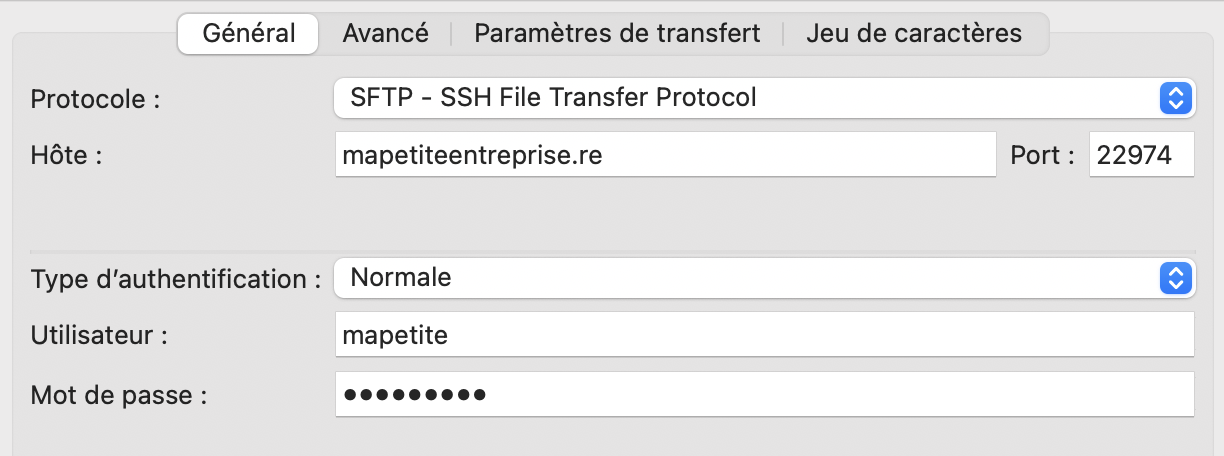
Warning: SFTP connection does not work for FTP accounts created in the "FTP Accounts" section of cPanel.
Updated on: 21/02/2026
Thank you!