
How to deploy a Node.JS application?
What is the difference between "Setup Node.JS App" and the ".bashrc" method?
- "Setup Node.JS App": This tool is only used to configure a Node.JS application accessible via the web (such as an API or an Express.js site). It automatically configures an environment and manages the web server execution.
- ".bashrc" method: It gives you full control over Node.JS. You can run any Node.JS script, whether it is a cron job, a command-line tool or a build script. See the dedicated FAQ on this topic.
How to deploy your Node.JS web app with "Setup Node.JS App"?
We allow you to deploy a Node.JS application directly on your hosting, without having to manage your node process yourself. Technically, the deployment is based on Phusion Passenger (you will find more technical information about how it works at the bottom of this page).
Also, feel free to check the list of frequently asked questions about Node.JS.
- Log in to your cPanel
- In the "Software" section, choose "Setup Node.JS App"
- Click on "Create Application"
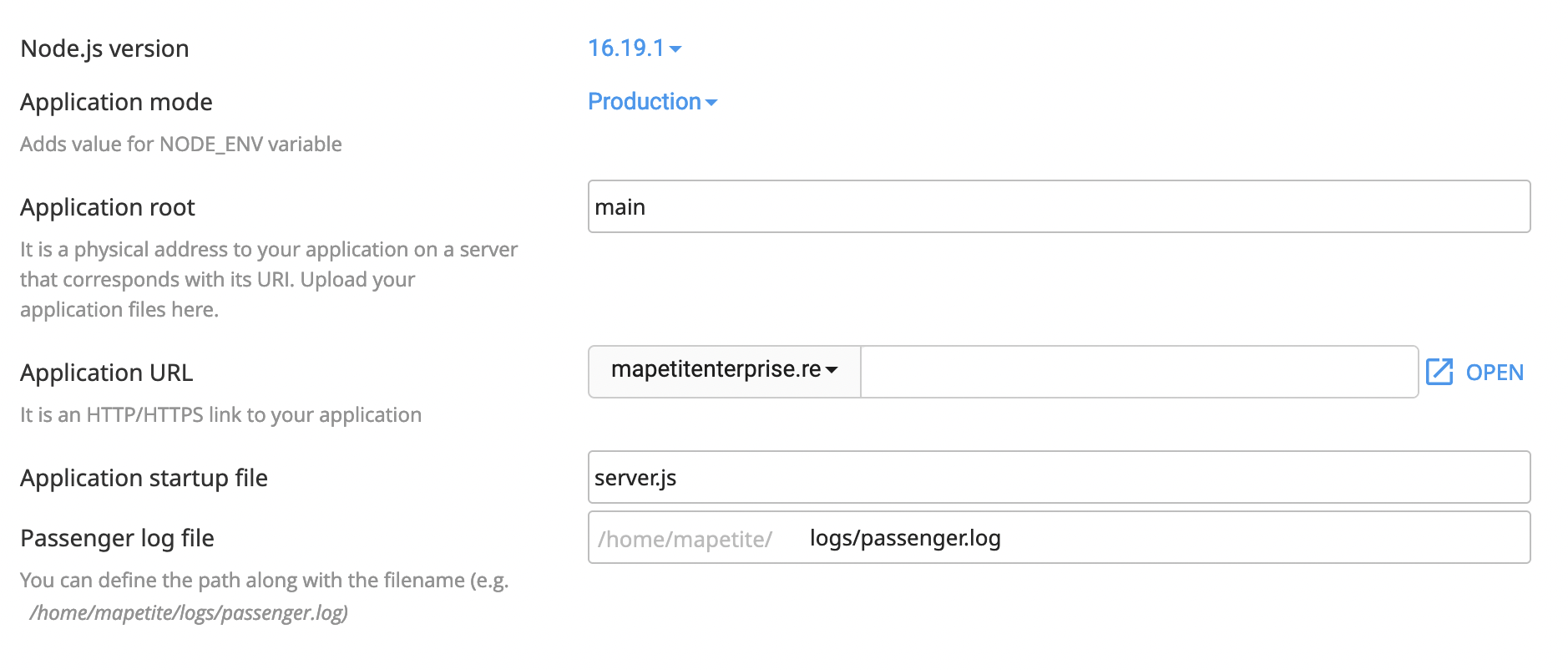
- Fill in your application information:
Create: click here after filling in the form to create your application
Node.js version: choose the Node.JS version to use (if you are missing the version you need, don't worry, our technical support will install it for you)Application mode: choose between development and production mode, this sets theNODE_ENVenvironment variable.Application root: specify the folder where your application code is located (preferably use a folder different from the one for the domain where you will deploy your application)Application URL: specify the URL where you want to deploy your application, the directory after the domain name being optional (cPanel will create an .htaccess file at this location)Application startup file: specify the name of the JavaScript file used to start your application, it must be located in theApplication Rootfolder (this is usuallyserver.js)Passenger log file: specify where you want to create the log file (optional but useful for debugging)Environment variables - Add Variable: add the environment variables required by your application
- Even though you can install dependencies via cPanel, we recommend doing it via SSH to better see any errors.
- To do this, connect via SSH, copy the line shown at the top of your application page in cPanel and run it once connected via SSH:

- You can then run
npm installoryarn install. - If you get a "
RangeError: WebAssembly.instantiate(): Out of memory: wasm memory" error, try connecting via SSH instead of using the cPanel Terminal application, as the latter does not allocate enough memory for these commands.
How does it work technically?
Phusion Passenger works differently from what you may be used to (e.g.: node server.js), and you did not have to specify a listening port for your application. In fact, Phusion Passenger handles all of this transparently. The Setup Node.JS App tool takes care of launching your application and restarting it if it suddenly stops.
For this reason, you should not manually start your application because it would listen on port 3000 (for example) which is not accessible from outside (blocked by our firewall).
Phusion Passenger launches your application, and as soon as it encounters the listen() instruction, it connects a Unix socket to it (instead of the specified port) and links it to the web server through this Unix socket. This is called reverse-port binding.
Updated on: 21/02/2026
Thank you!