
How to install WordPress on your site?
Installing WordPress on your website may seem complex, especially if this is your first experience with this type of platform. Fortunately, our hosting plans include WordPress Toolkit which greatly simplifies this process. This auto-installation tool allows you to quickly launch your WordPress site in just a few steps.
- Log in to your cPanel
- On the left, click on "WordPress Management"
- Then click the "Install WordPress" button:
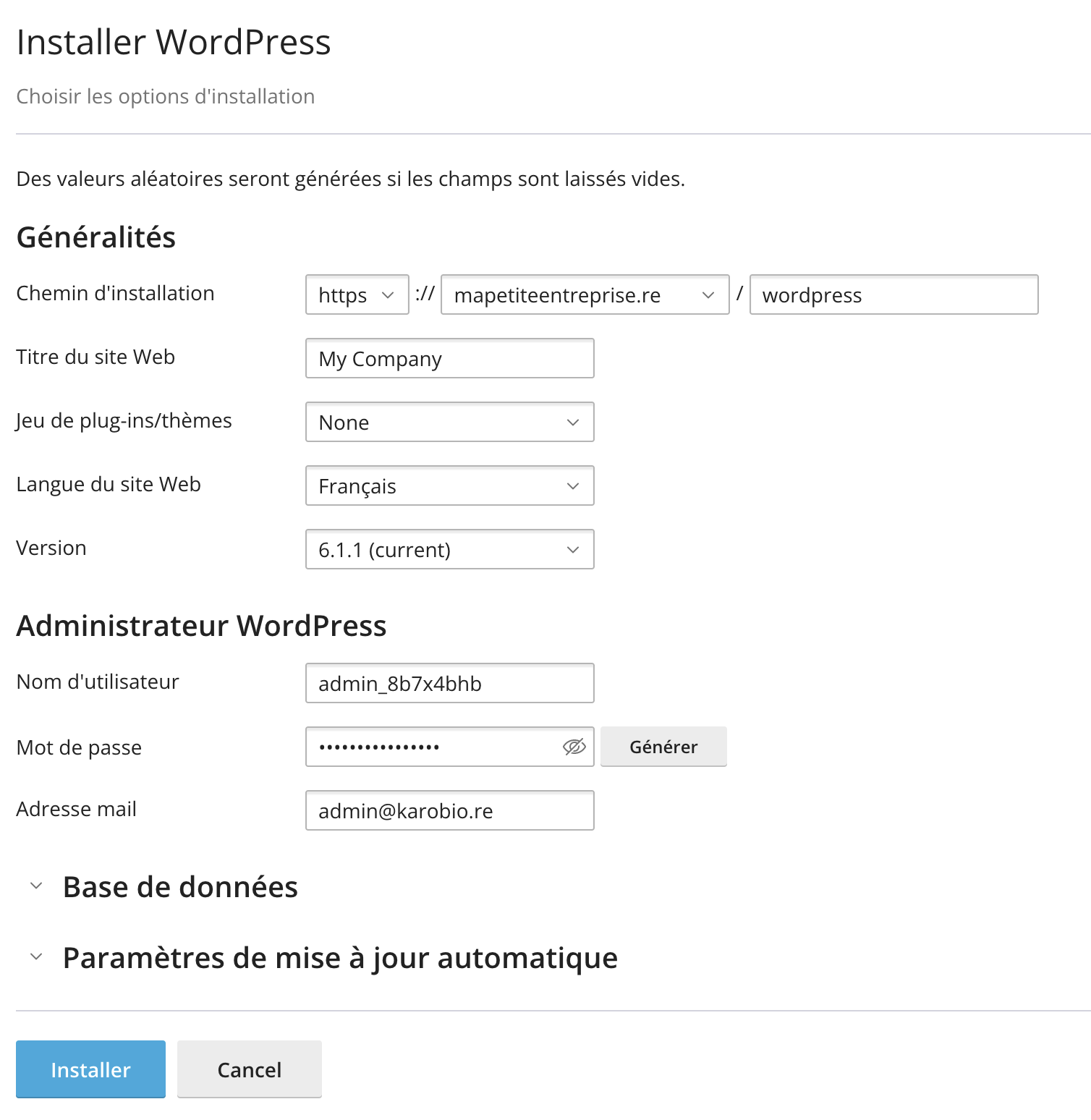
- Leave the installation path empty, or enter "wordpress" if you wish to install WordPress in a subfolder called "wordpress" for example
- Confirm the installation options
- Make sure to note the generated password or change it.
- Click the "Install" button at the bottom of the page
- Once your WordPress site is installed, you can start building your website, for example by following the video tutorial by Enzo (Easy Wordpress).
Go further
We provide resources to help you learn how to use WordPress.
We include AccelerateWP as standard, which allows you to speed up your website for free, with Premium and CDN options for the most demanding websites.
We offer WordPress Serenity as an option if you want us to maintain a high level of security on your WordPress site.
Updated on: 21/02/2026
Thank you!