
How do I restore a backup?
This article covers shared hosting; click here for dedicated servers.
We back up your space automatically, and you can restore, or download, the backups taken this way using JetBackup.
Warning!
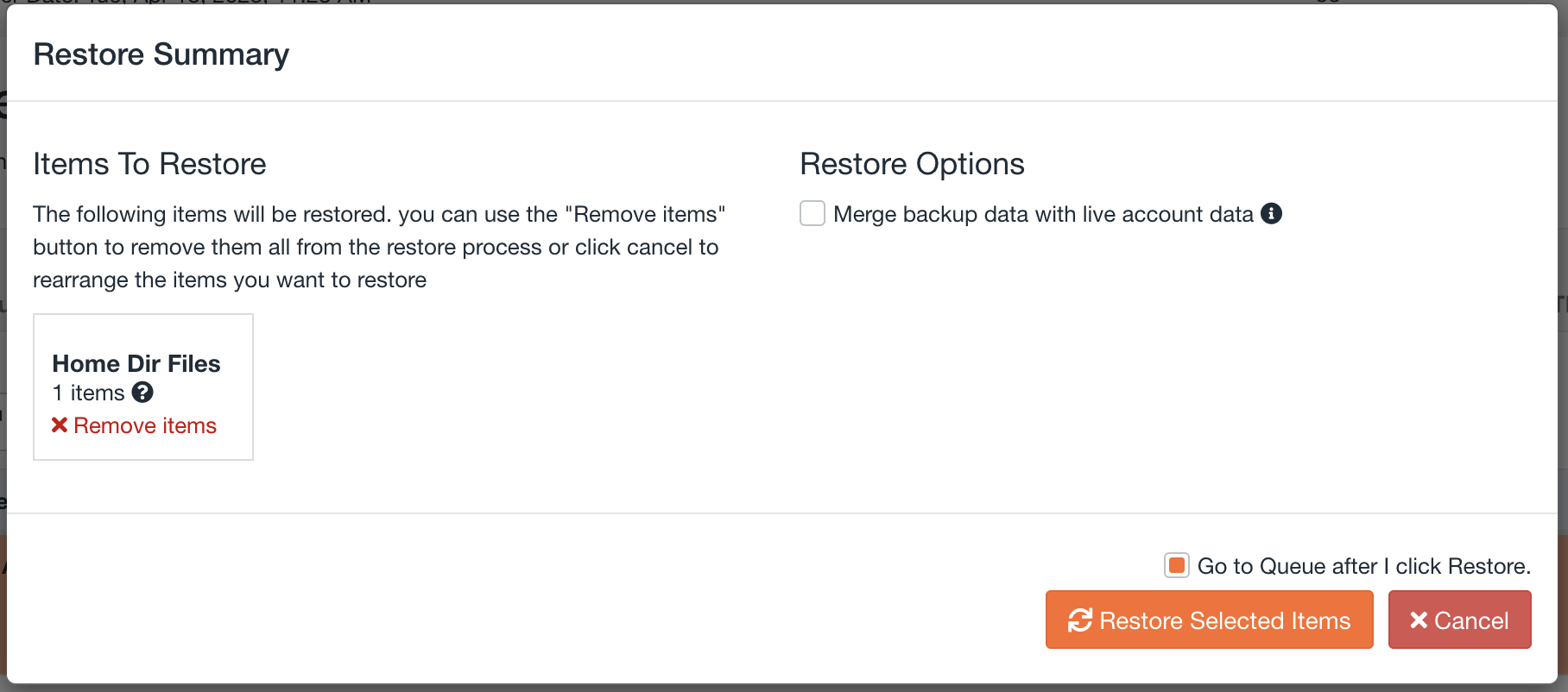
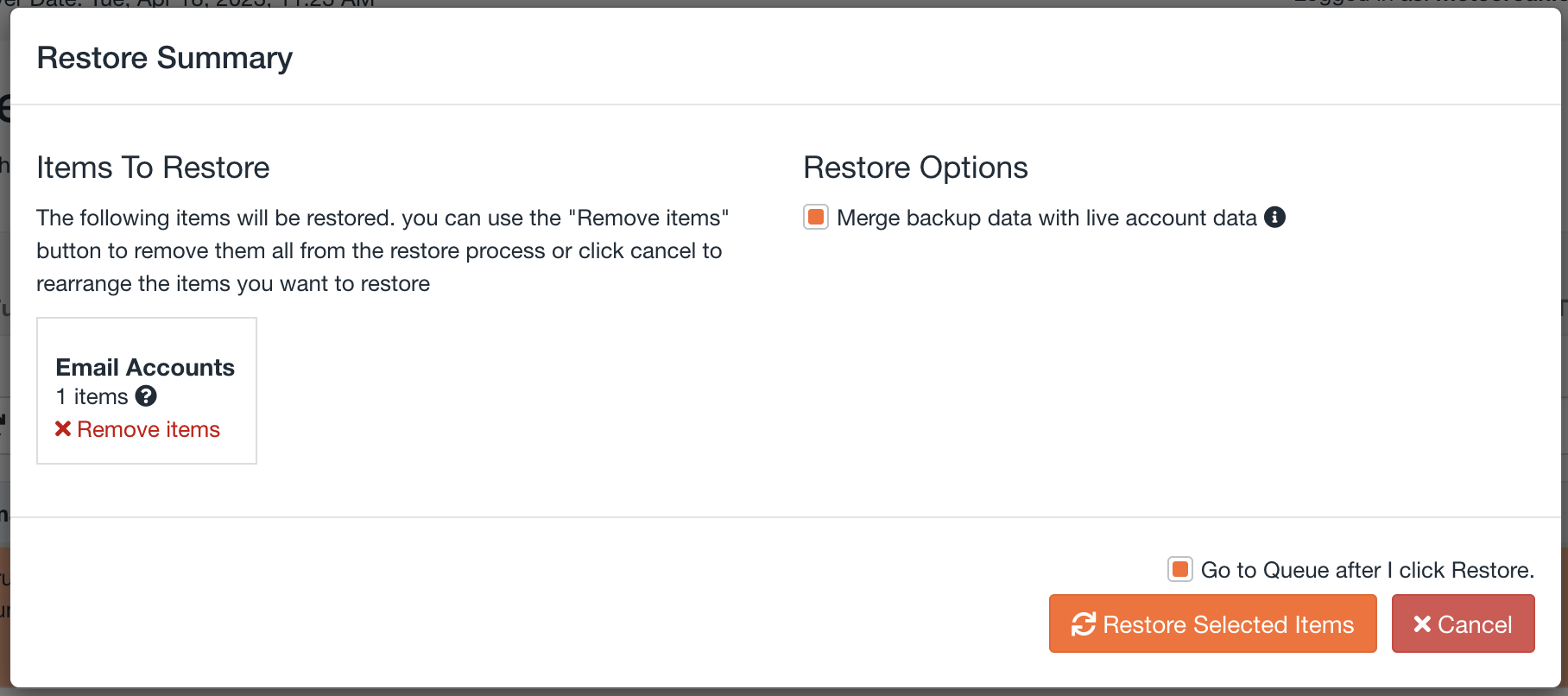
Restoring can erase data created after the backup date, so we recommend downloading your backups to your computer if you're not sure, rather than restoring backups that would overwrite your data. You can also check the "Merge backup data with live account data" box to avoid this.
Our technical support team is available to restore manually on your behalf if you'd prefer, for a fee of €79 excl. tax (included with the CYBER+ or VIP package).
Below you'll find instructions for accessing the backups we take, covering the most common needs. You'll find more details on advanced features in the full JetBackup documentation (for example, restoring other types of data).
Folders and files
- Log in to your cPanel
- In the "Files" section, choose "JetBackup 5"
- Click on "Home Directory"
- Click the date of the backup you want:

- Click "Change Files Selection" to choose the files to restore by clicking the checkbox next to them (you can navigate into a folder by clicking its name), then click "Select Files".
- Then click "Restore" to restore your files, or "Download" to download them.
- If you clicked "Restore", check the "Merge backup data with live account data" box in the window if you want files created/modified since the backup to be kept:
Databases
- Log in to your cPanel
- In the "Files" section, choose "JetBackup 5"
- Click on "Databases"
- Click the name of the database you want:

- Click "Choose Other Backup" if you want to change the date of the backup to restore.
- Then click "Restore" to restore your files, or "Download" to download them.
Email accounts
- Log in to your cPanel
- In the "Files" section, choose "JetBackup 5"
- Click on "Email accounts"
- Click the email account you want:

- Click "Choose Other Backup" if you want to change the date of the backup to restore.
- Then click "Restore" to restore your files, or "Download" to download them.
- If you clicked "Restore", check the "Merge backup data with live account data" box in the window, unless you want to erase the messages from the backup:
Updated on: 17/07/2026
Thank you!