
How do I configure my FTP client to upload my site?
To upload your site from your computer to our servers, you will need to use an FTP client, such as FileZilla.
Which username and password should I use?
By default, your hosting account has an FTP account whose username and password are the same as your cPanel username found in your welcome email. This is not the username and password for your client account. If you have lost your cPanel username or password, click here to find out how to recover it.
You can also create other FTP accounts in the "FTP Accounts" section of your cPanel. Be careful to change the path indicated in the "Directory" section so that it matches your website's folder. Your main domain name is located in the public_html folder. If you are taking part in 24h by WebCup, you do not have this option, you must use your cPanel username and password.
How do I configure FileZilla?
- In the "File" menu, click on "Site Manager…"
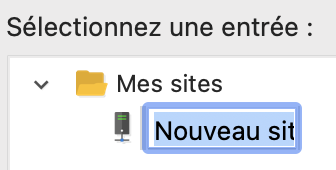
- Click the "New Site" button
- Enter the name of your website, then press the Enter key on your keyboard:
- In the section on the right, fill in the information related to your hosting:
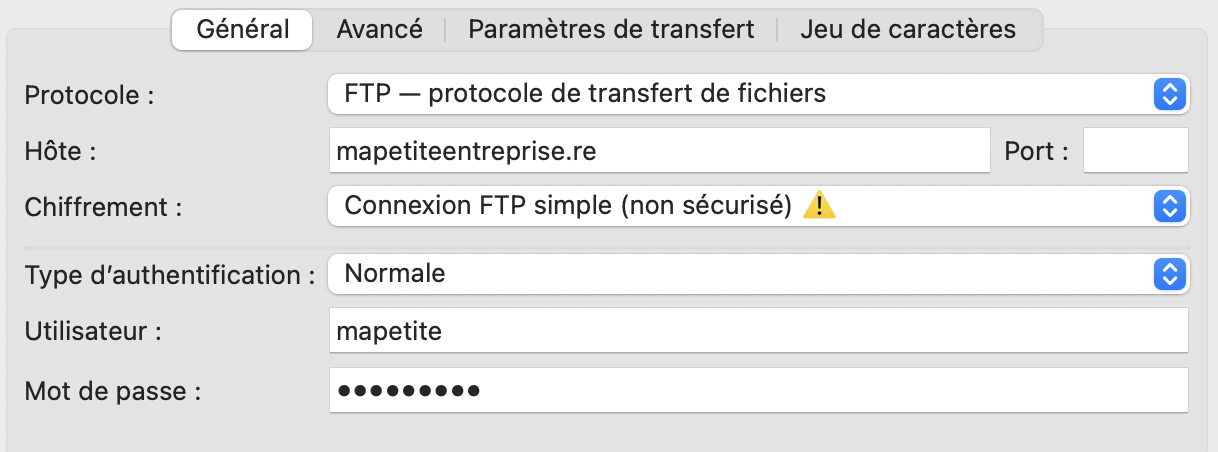
- Host: your domain name
- Encryption: Plain FTP connection (insecure) - if you would like to use a secure connection, see the "And how do I transfer securely?" section at the bottom of this page
- Logon Type: Normal
- User: your cPanel username, or the FTP account you created
- Password: the associated password
- Click the Connect button
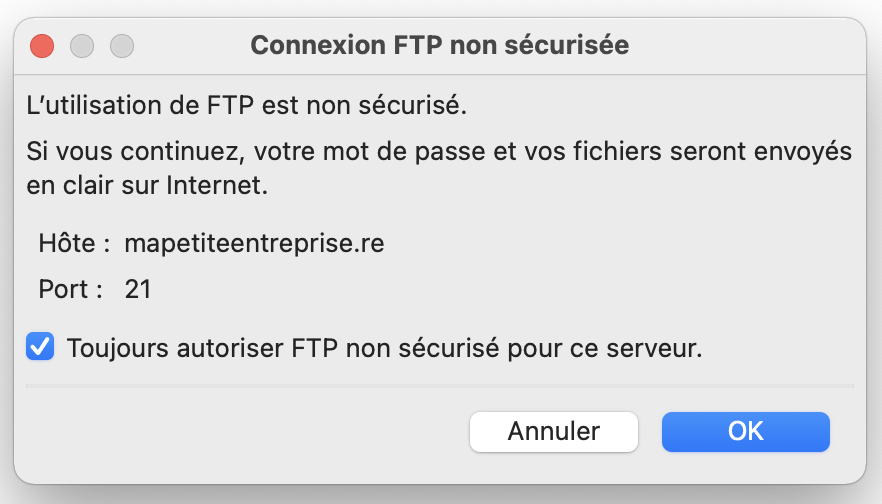
- If the window below appears, check the box "Always allow unencrypted FTP for this server." then click the "OK" button
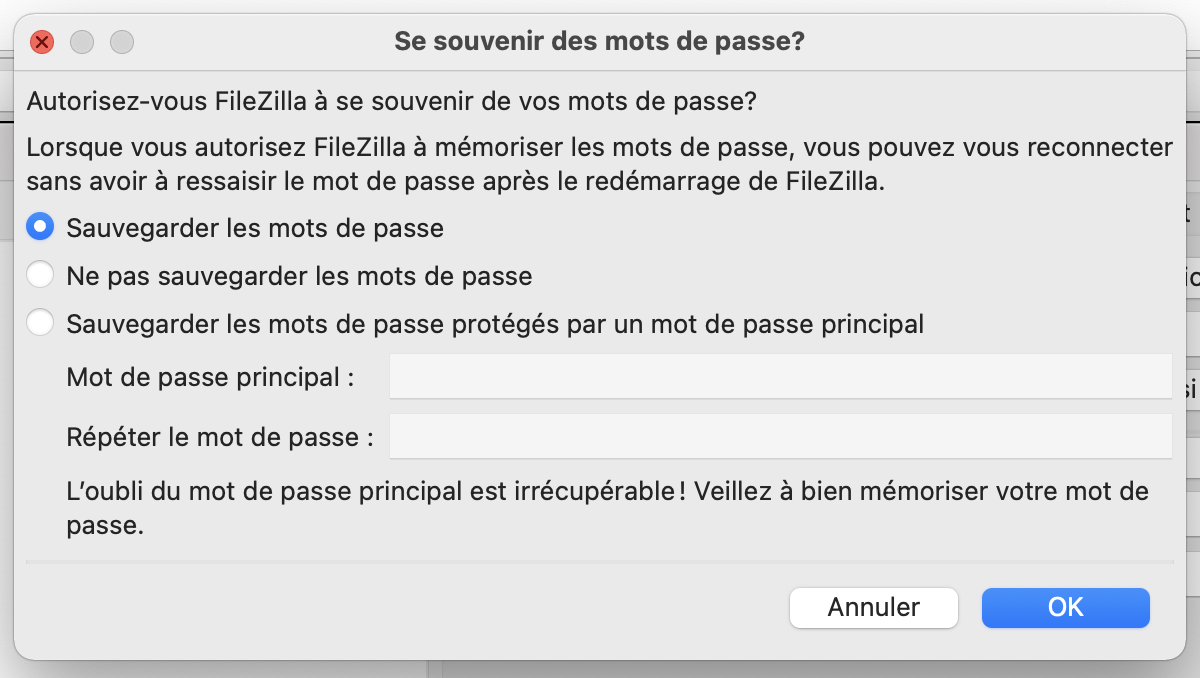
- If the window below appears, check the box "Save passwords" then click the "OK" button
Once you have saved the settings, next time you will simply need to open the Site Manager via the File menu and click "Connect".
How do I transfer files with FileZilla?
You can then drag and drop files between your computer (section on the left, called "Local site") and your server (section on the right, called "Remote site"). If you want to upload files to your server, drag them from left to right. If you want to download files from your server, drag the files from right to left.
Tip: your main domain name is located in the public_html folder and the file displayed when your site opens must be called index.html (or index.php if you use the PHP language).
To go further, you can watch the video below:
Not seeing your changes?
We invite you to check out the frequently asked question "You don't see the changes on your site?".
The connection is not going through
Check that you have properly disabled the secure connection or TLS, as it causes issues if you use your domain name instead of the server name (see below).
There may be maintenance in progress or your IP address may have been blocked; we invite you to check the FAQ "Your site displays a This site can't be reached error" which will help you better understand the cause.
The folder is empty and/or my files return a 404 error and/or I get a 403 error on my site's homepage?
If you are using an additional FTP account you created in cPanel (it contains your domain name, e.g.: admin@mapetiteentreprise.re), you probably haven't changed the path indicated in "Directory". Your FTP account then lands on a directory that isn't the one that corresponds to your website. You will need to delete and recreate your FTP account, making sure to put public_html in the "Directory" field (or the path to the additional domain, if applicable).
If you have not created an additional FTP account and are using your cPanel username and password, check that you have indeed transferred your files to the root of the public_html folder (or the folder of your additional domain, if applicable).
And how do I transfer securely?
cPanel currently only allows an explicit secure FTP connection by specifying the server hostname in the "Host" field of the configuration. To find your hostname, enter your server's IP address into the Reverse IP Lookup tool.
You can also use an SFTP connection using your cPanel username and password, and specifying port 22974 (click here if you have lost your cPanel username or password):
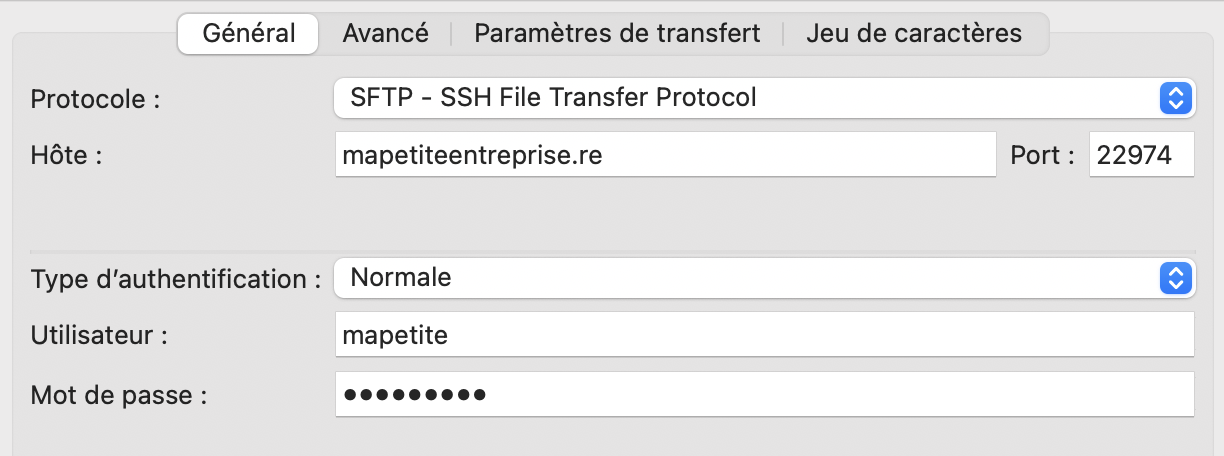
Warning: SFTP connections do not work for FTP accounts created in the "FTP Accounts" section of cPanel.
Updated on: 17/07/2026
Thank you!