
How do I improve the deliverability of my emails?
DKIM, SPF, and DMARC: what are they?
If your emails are landing in your recipients' spam folders, your deliverability may not be optimal, often due to a DKIM and/or SPF configuration issue. Two main mechanisms come into play to keep emails from being marked as spam: DKIM and SPF.
These two mechanisms authenticate the server sending your emails and limit spoofing of your domains. Put simply, with DKIM and SPF, our mail server adds DNS-based authentication to every email you send, authentication that a spammer trying to spoof your domain name cannot use, allowing the recipient's server to tell a genuine email apart from a fraudulent one.
In addition to DKIM and SPF, DMARC strengthens email security by letting you define the policy for handling messages where DKIM or SPF authentication fails, for your domain name. DMARC is also DNS-based.
Without DMARC, it's the recipient's server that decides whether to reject the email or mark it as spam if DKIM and/or SPF authentication fails.
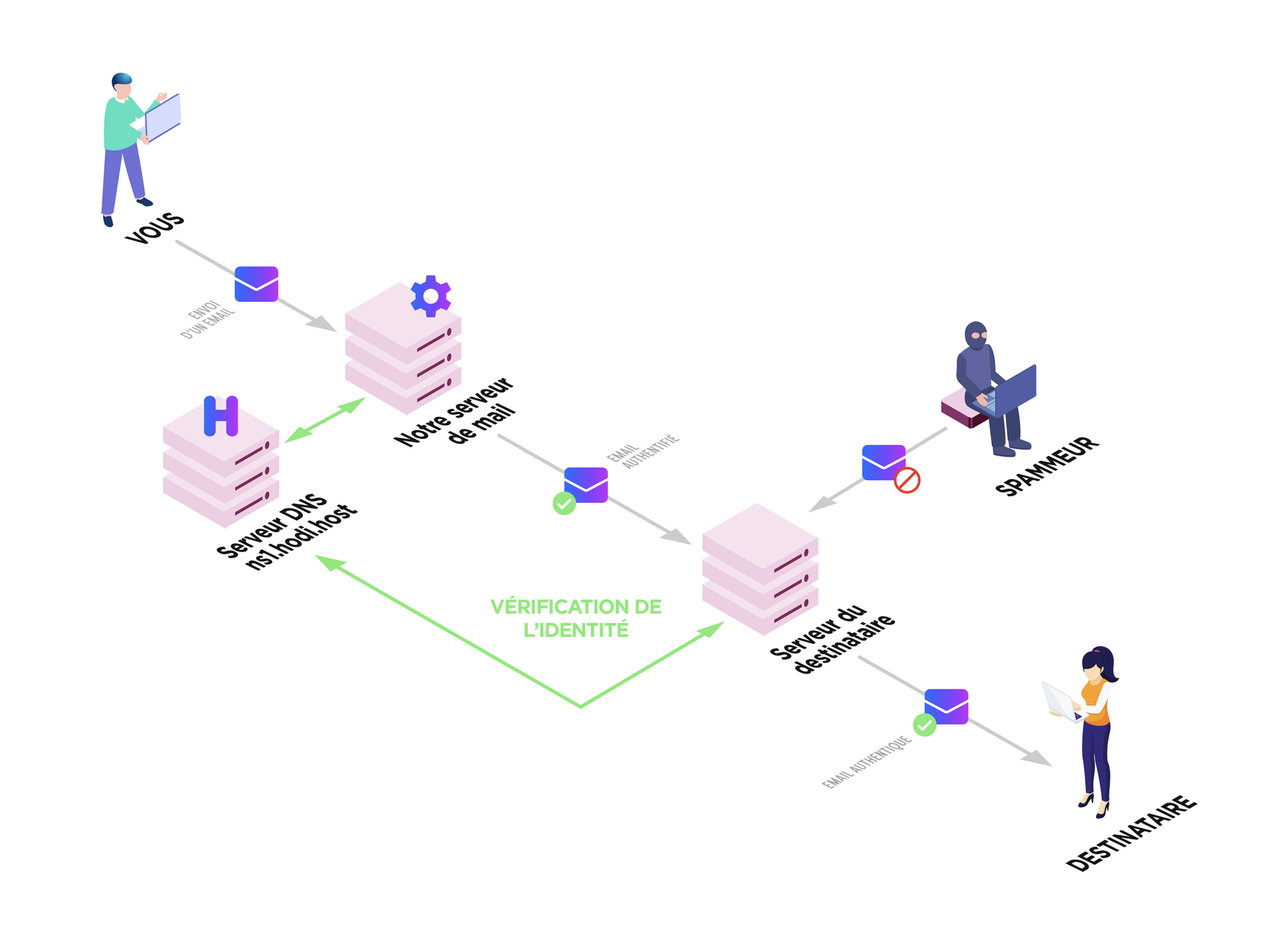
SPF and DKIM Configuration
If You Use Our Mail Server
When your hosting is created, we set up a correct configuration, but this may have changed due to modifications you may have made to your DNS zone.
Here's how to check that SPF and DKIM are configured correctly:
- Log in to your cPanel
- In the "Email" section, choose "Email Deliverability"
- cPanel then checks that the SPF and DKIM information is correct and displays a message if it is not:

- If any issues are found, you can fix the configuration using the "Repair" button:
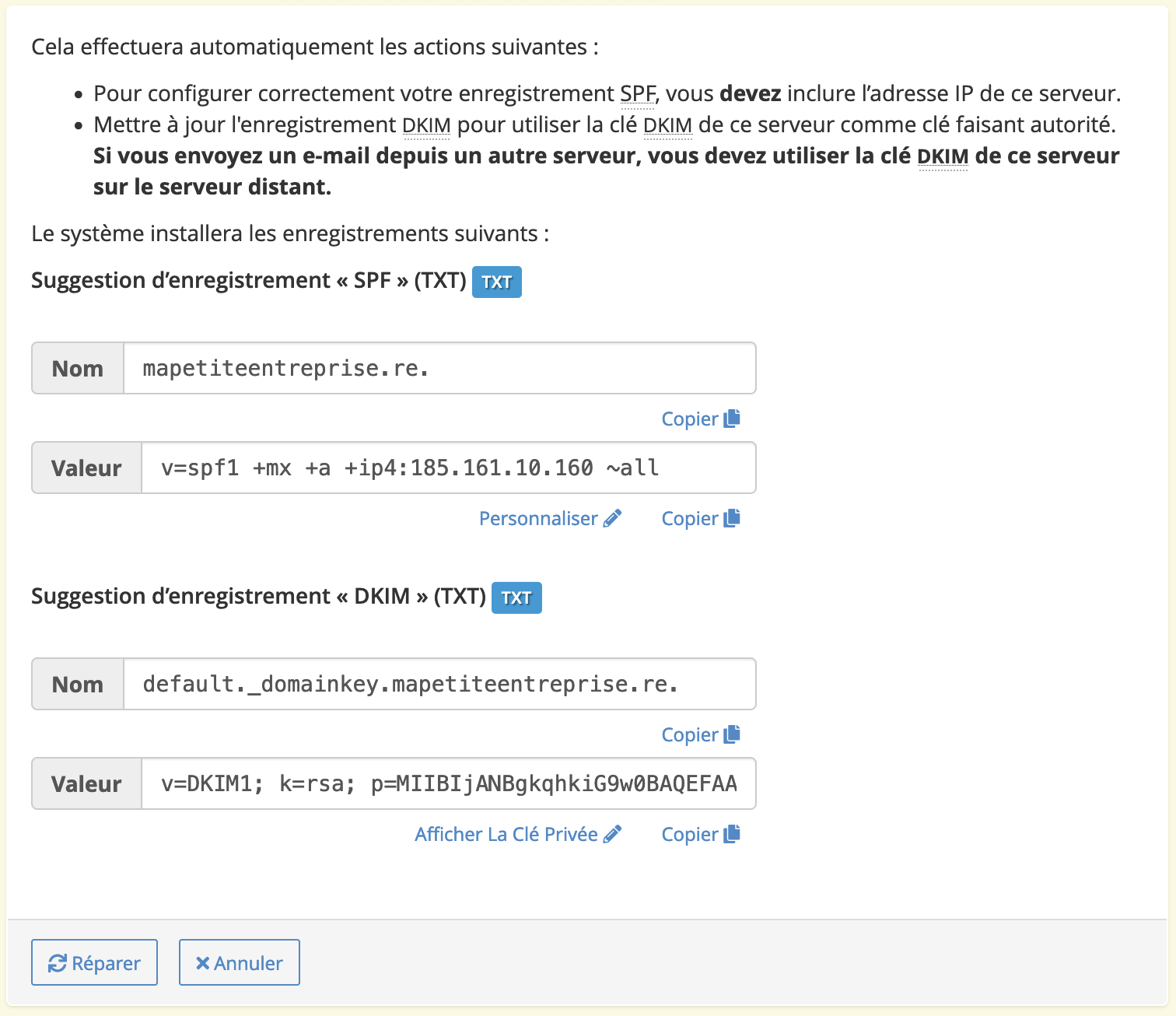
- If your domain name does not use our DNS servers, you will need to make the changes in the DNS management interface of your DNS servers.
If You Use a Third-Party Mail Server
We recommend checking with the relevant provider that DKIM and SPF are configured correctly, then checking your DNS zone to make sure the required DNS records are properly set up. Your provider very likely offers a DKIM and SPF verification tool. Feel free to contact their support for more information.
Warning!
You must have only one SPF record (a DNS TXT record starting with "v=spf1").
If the third-party provider asks you to add an SPF record, what you actually need to do is modify your existing SPF record to include theirs. For example, if they ask you to add "v=spf1 include:spf.monfournisseur.fr ~all" and your current record in cPanel is "v=spf1 +a +mx +ip4:185.161.10.160 ~all", you would need to change it to "v=spf1 +a +mx +ip4:185.161.10.160 include:spf.monfournisseur.fr ~all".
If there are multiple SPF entries for your domain name, this will cause deliverability issues.
Here are a few resources that can help you check your configuration:
- SPF configuration for Google Workspace
- DKIM configuration for Google Workspace
- SPF configuration for Microsoft 365
- DKIM configuration for Microsoft 365
DMARC Configuration
We recommend waiting 48 hours after configuring SPF and DKIM before setting up DMARC.
Here's how to set up your DMARC configuration:
- Go to your DNS zone
- Search for
_dmarc - If you find a record, you'll need to modify it using one of the examples below
- If you don't find anything, you'll need to add a
TXTrecord using one of the examples below, with the name_dmarc.followed by your domain name (for example,_dmarc.mapetiteentreprise.re)
DMARC Record Value | Explanation |
|---|---|
v=DMARC1; p=none; | Do nothing if an email does not comply with your DKIM and SPF rules |
v=DMARC1; p=quarantine; | If an email does not comply with your DKIM and SPF rules, quarantine it (e.g., in the "spam" folder) |
v=DMARC1; p=reject; | If an email does not comply with your DKIM and SPF rules, reject it |
You can also use a free third-party service provided by Postmark to get weekly reports on your email deliverability. This service will give you a specific DMARC record to set up. |
Check your DMARC record on MxToolbox
Updated on: 17/07/2026
Thank you!