
How do I unblock an email blocked by SpamExperts?
In the very rare cases where you need to recover an email that was blocked by SpamExperts because it was identified as spam, you can unblock it directly in just a few steps:
- Log in to your Client Area
- In the "My account" menu, choose "My services"
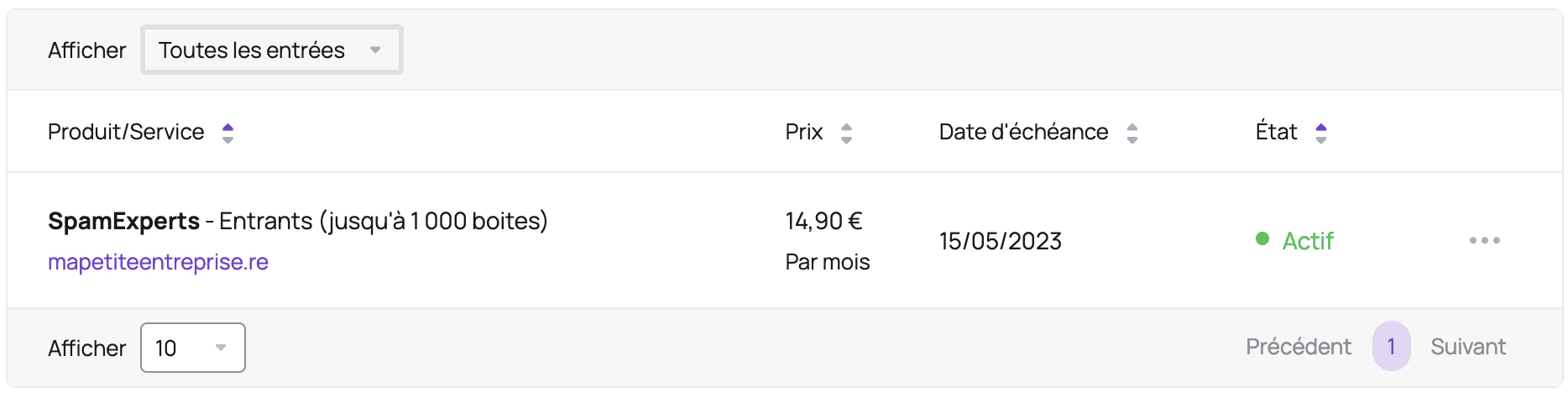
- Click on the "SpamExperts" row for the domain you want to access:
- Click "Log in to SpamExperts":
- If SpamExperts doesn't open, check that your browser isn't blocking pop-up windows.
- If SpamExperts is in English, click the "English (US)" button in the top right and choose "French":
- In the left-hand menu, choose "Spam Quarantine" in the "Incoming" section:
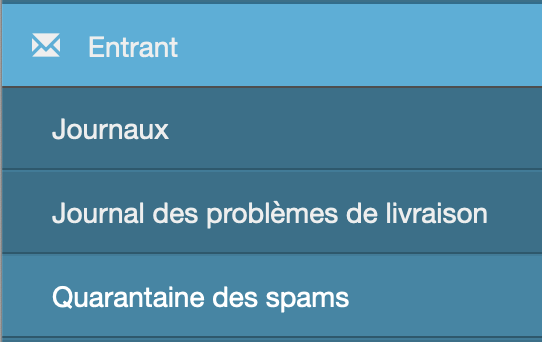
- You'll then have access to the list of all messages that were blocked by SpamExperts:

- If you need to filter, you can click the "New rule" button in the "Query rules" section:
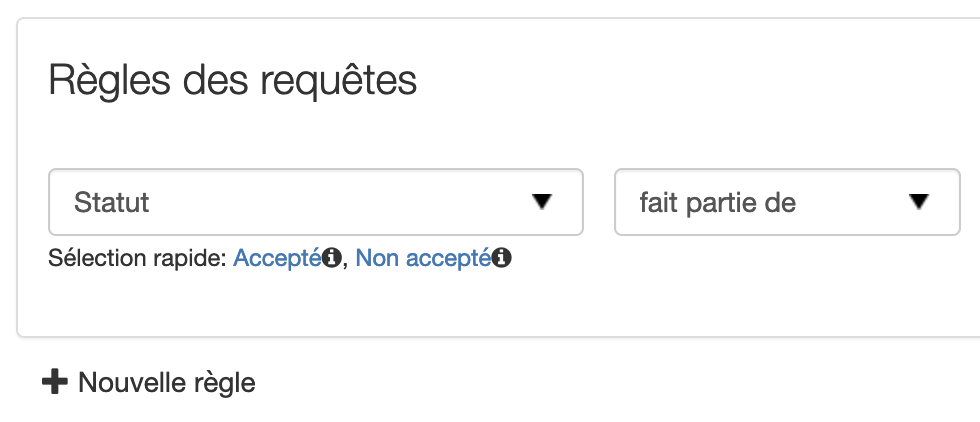
You can then, for example, filter by sender or recipient.
- Once you've identified the message, you can click its subject to preview it and unblock it if needed.
- If you want to unblock the message or whitelist the sender, click "More actions" in the preview window that appears after clicking the subject. Here are the main actions:
- Add sender to whitelist: stops future messages from this sender from being blocked
- Release from quarantine: sends the message to your mailbox
- Release and learn from quarantine: sends the message to your mailbox and teaches SpamExperts that this message wasn't spam (to avoid blocking similar messages in future)
- If the message you're looking for isn't there, see the next section.
Note: SpamExperts times are shown in the Paris timezone.
What if the message isn't in the SpamExperts quarantine?
You can see the list of all messages received by SpamExperts in the "Logs" menu of the "Incoming" section. This lets you check, for example, whether the message hasn't yet been delivered by the sender's server to SpamExperts, or whether there's another issue (for example, a connection failure to your mail server).
You must apply filters in this section using the "Query rules" section, then click "Show results". The default filter shows messages from the last week.
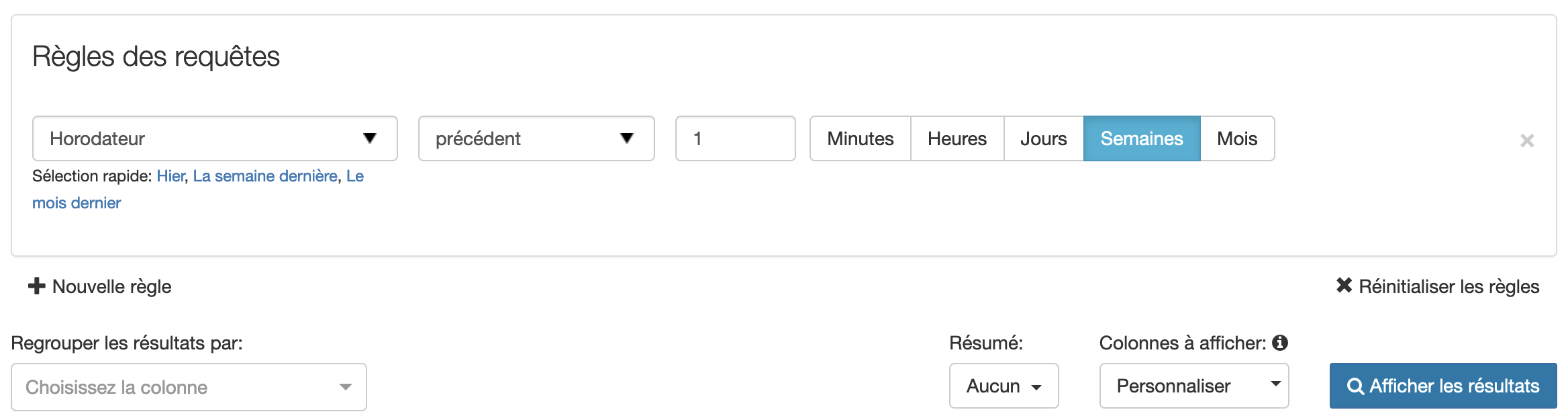
Once you've applied the filter, you'll see several possible scenarios:
- If you can't find the message you're looking for, you'll need to contact the sender - the problem is likely on their mail server's end.
- If you find the message you're looking for, here are the most common statuses:-
delivered: the message was sent to your mail server queuedorbounced: the message couldn't be sent to your mail server (you can click the arrow next to the checkbox, then choose "Delivery Problem Log" for more details)queued: SpamExperts will regularly retry sending the messagebounced: the number of delivery attempts has been exceeded and SpamExperts sent an error message to the sender to let them know the message couldn't be delivered
quarantined-expired: the message has been in quarantine for more than 14 days and has been deleted from SpamExpertsconnection-lostandnot-accepted: the SMTP connection wasn't properly closed - this is a connection issue between your server and SpamExpertsrejected: the message is considered highly dangerous (phishing or a virus, for example) and was blocked at the SMTP level (the sender received an error message)
Allowing end users to unblock their own emails
If you want to allow your users to unblock their own emails, go to the left-hand menu and choose "Manage Email Users" in the "Users and Permissions" section. Your users will only have access to emails addressed to them.
On this screen, you can choose to create a user (the "Add" link), upload a CSV file (the "Upload a CSV file" link), or configure Active Directory / LDAP authentication (click the arrow next to "LDAP Authentication"):

Your users will be able to access the interface via https://login.antispamcloud.com.
Updated on: 17/07/2026
Thank you!