
What should I do when a malicious file is detected on my hosting?
Why did I receive this alert email?
You received this email because cpGuard, our security tool built into your web hosting, detected a malicious file (virus, backdoor, hacked script...) on your space. This doesn't necessarily mean your entire site is compromised, but that a suspicious file was detected and was cleaned / removed by cpGuard for your security.
Where can I see the list of detected files?
- Log in to your cPanel
- Click the "cpGuard" icon in the "Security" section
- Go to "Virus Scanner" then "Scanner Logs":
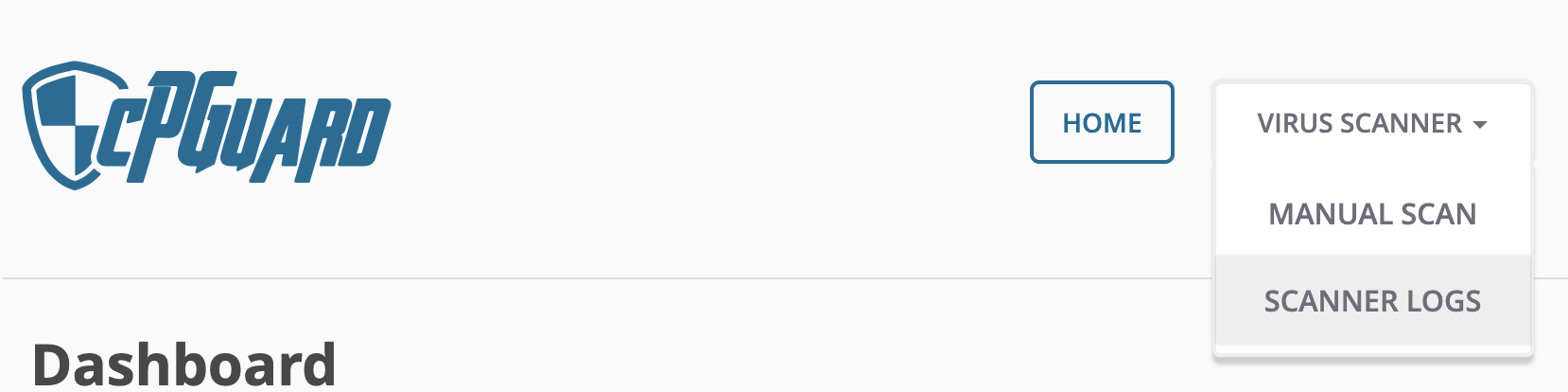
- There you'll see the list of detected files, and you can get more details by clicking the file icon to the right of the row:
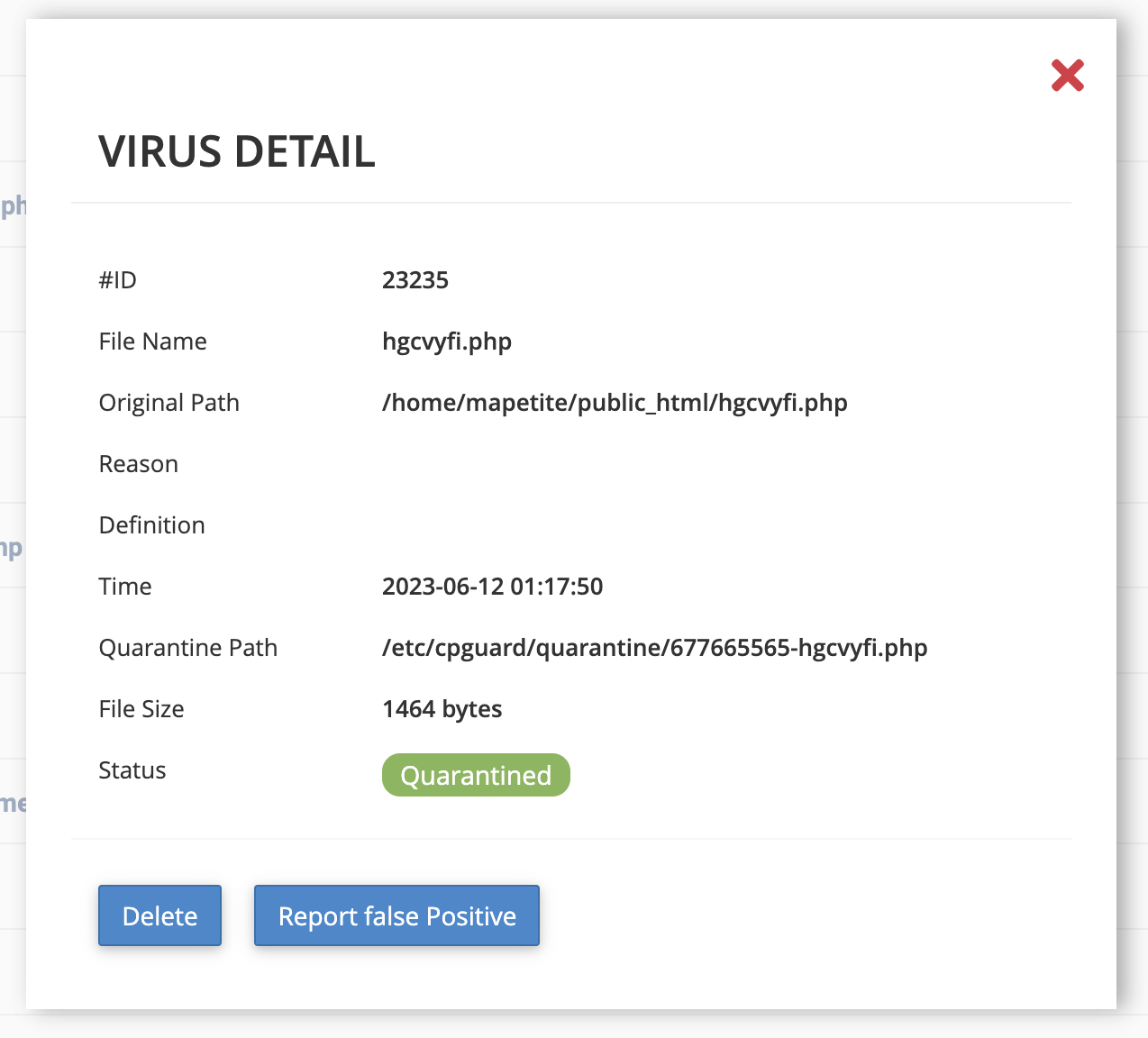
- Thanks to the full path (Original Path), you can find out which site is affected if you're on a multi-site setup.
How can I trace the origin of the file?
- Log in to your cPanel
- Go to "Metrics" then "Raw Access" (Raw Access Logs)
- Download the files matching your domain and the period covering the detection date (both SSL and non-SSL)
- Unzip it on your computer
- Open the .log file with a text editor and look for lines around the detection date, containing in particular
POST(often used to upload or inject malicious code), for example
192.168.1.10 - - [12/Jun/2023:01:17:44 +0400] "POST /uploader.php HTTP/1.1" 200
- You can also look for IP addresses making a large number of requests in a very short time or foreign IP addresses if your site doesn't target those regions (https://www.geolocation.com/fr can help you locate IPs)
What can I do to prevent a new attack?
- Update your CMS, your plugins and your themes
- Change your passwords (cPanel, FTP and CMS)
- Limit the third parties who have access to your site
- If you use WordPress, consider subscribing to "WordPress Serenity"
What should I do if I'm lost?
If you don't know how to interpret the infected files or analyze the logs, don't panic.
Here's what to do:
- First contact your developer or webmaster - They know your site best and can quickly check your plugins, themes or scripts.
- In most cases, a simple cleanup and an update are enough to secure the site again.
- If you don't have a developer available
- The Hodi team can support you with the analysis and cleanup.
- This service falls outside the scope of standard support and will be the subject of a specific quote, prepared by our cybersecurity experts.
- Our role will be to:
- analyze the infected files and the raw access logs,
- clean up the compromised files,
- secure your site's configuration,
- advise you on best practices to prevent a new infection.
- Feel free to contact us to request this specialized intervention.
Updated on: 17/07/2026
Thank you!