
My site displays an unexplained 508 "Resource Limit Is Reached" error

If you get a 508 error, your site is using all of the resources allocated to it because it has too many connections. Don't worry, there are several solutions, but if you don't understand everything written on the rest of this page, simply send this page's link to your developer so they can make sense of it for you. In any case, as soon as you drop back below your site's allocated resources, the service comes back automatically on its own.
If the error happens every time you send a newsletter, feel free to use batch delivery to avoid all visitors arriving on your site at the same time and overwhelming your resources: click here to find out how to do this with Mailchimp, for example.
But read on anyway
How do you know what resources you're using?
First, you can view your hosting's resource usage history under Metrics > Resource Usage; the home screen also shows you if you've exceeded your resources:
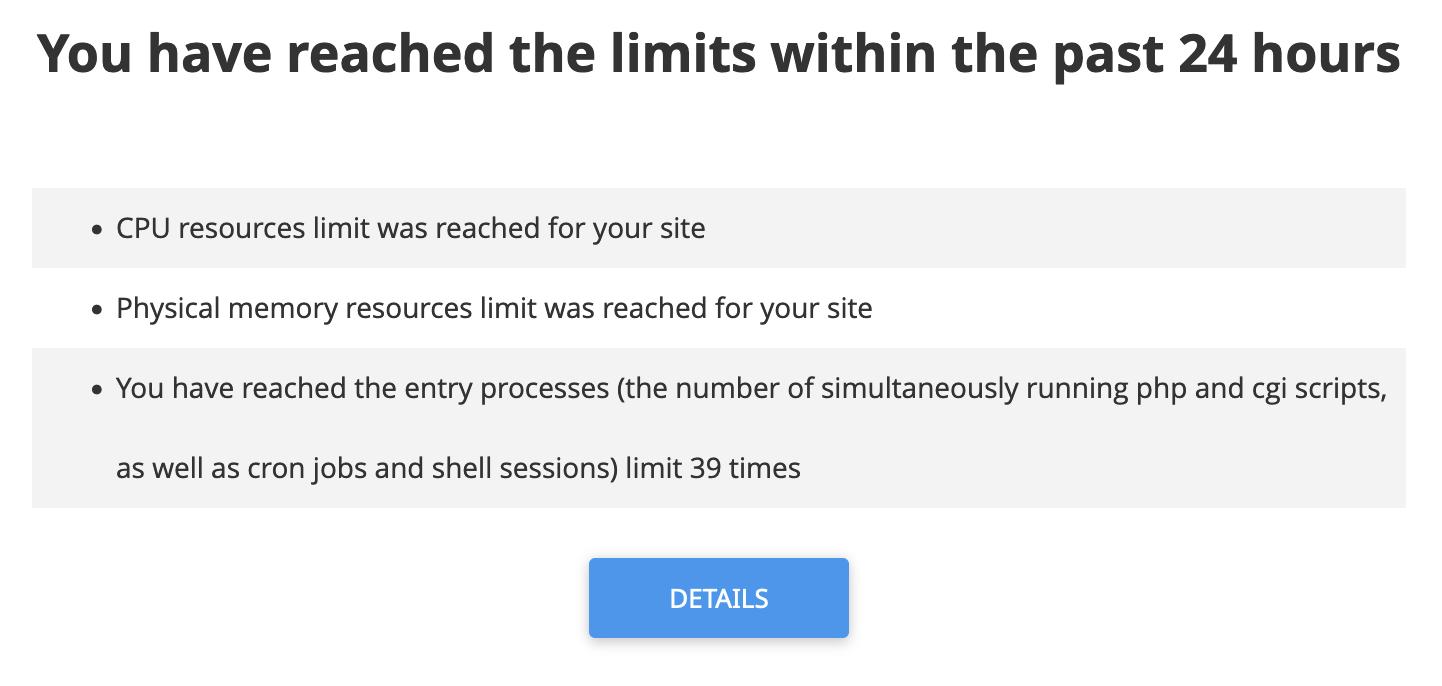
Click "Details" to see the history of your resource usage and your current consumption. On the same page you'll find charts showing you the times when you exceed your resources.
What are the most common causes?
The most common reason is that you disabled the NGINX cache we provide while you were developing your site, and forgot to turn it back on. But don't panic, click here to find out everything and reactivate it. Caching greatly reduces the resources used and is especially useful during periods of high traffic. Also remember to check that caching is allowed by your site (in other words, that it hasn't been blocked by your site with a header such as Cache-Control: max-age=0, no-store, no-cache, for example).
It could also be that your site needs some optimization to perform better and use fewer resources. You'll be able to see what's using the most resources with the PHP X-Ray tool. You'll need to wait for the error to clear before you can run the test.
It could also be an attack on your site or a malicious script on your hosting; feel free to check the log files in cPanel under Metrics > Raw Access to see if there's anything unfamiliar. You can also run an anti-virus/anti-malware scan of your hosting via the Security > cpGuard section, then clicking the Scan > Manual scan menu and finally the Run scan button.
How do you fix this?
If you find your hosting is too tight, you can change your plan at any time, and there's nothing to worry about - you'll also be able to downgrade your plan if the spike in load was temporary. There's no commitment, and if you downgrade, we credit you for the unused time on the old plan.
You can also book a meeting with one of our optimization experts and we can offer you a customized quote on how to best optimize your site.
Updated on: 17/07/2026
Thank you!